‘안드로이드 스튜디오’와 Gradle을 인스톨 후, ‘안드로이드 스튜디오’에서 프로젝트를 연다.
파일 ‘res>layout>main.xml’ 파일을 더블클릭하면 아래의 메시지가 나온다.
Design editor is unavailable until next gradle sync.
이것은 Gradle을 초기화하지 않았기 때문이다.
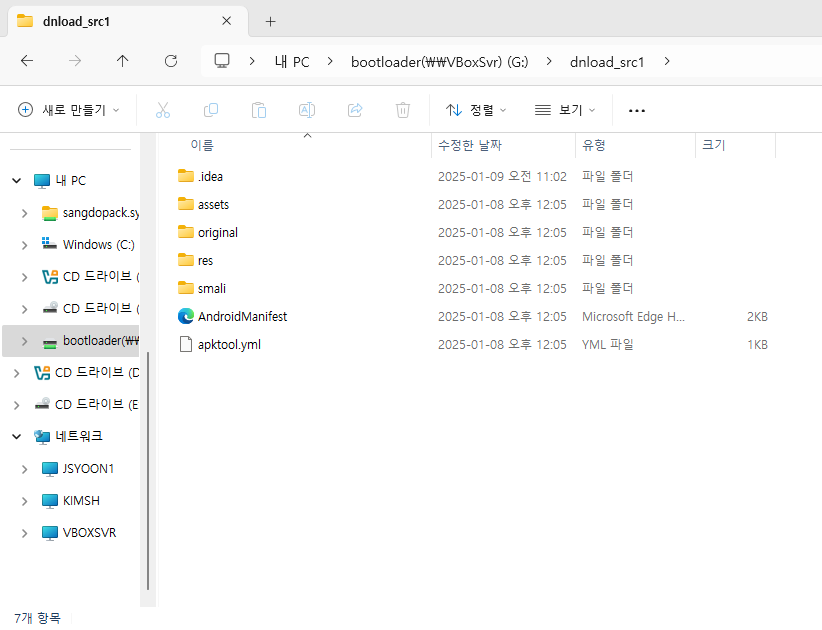
아마도 위와 같을 것이다. 다음의 명령어를 해당 폴더에서 입력한다.
Windows PowerShell
Copyright (C) Microsoft Corporation. All rights reserved.

Install the latest PowerShell for new features and improvements! https://aka.ms/PSWindows

PS G:\dnload_src1> gradle init
Starting a Gradle Daemon, 1 incompatible Daemon could not be reused, use --status for details

Found existing files in the project directory: 'G:\dnload_src1'.
Directory will be modified and existing files may be overwritten.  Continue? (default: no) [yes, no] y

Select type of build to generate:
  1: Application
  2: Library
  3: Gradle plugin
  4: Basic (build structure only)
Enter selection (default: Application) [1..4] 1

Select implementation language:
  1: Java
  2: Kotlin
  3: Groovy
  4: Scala
  5: C++
  6: Swift
Enter selection (default: Java) [1..6] 2

Enter target Java version (min: 7, default: 21):

Project name (default: dnload_src1):

Select application structure:
  1: Single application project
  2: Application and library project
Enter selection (default: Single application project) [1..2] 1

Select build script DSL:
  1: Kotlin
  2: Groovy
Enter selection (default: Kotlin) [1..2] 1

Select test framework:
  1: kotlin.test
  2: JUnit Jupiter
Enter selection (default: kotlin.test) [1..2] 1

Generate build using new APIs and behavior (some features may change in the next minor release)? (default: no) [yes, no]
 y


> Task :init
Learn more about Gradle by exploring our Samples at https://docs.gradle.org/8.12/samples/sample_building_kotlin_applications.html

[Incubating] Problems report is available at: file:///G:/dnload_src1/build/reports/problems/problems-report.html

Deprecated Gradle features were used in this build, making it incompatible with Gradle 9.0.

You can use '--warning-mode all' to show the individual deprecation warnings and determine if they come from your own scripts or plugins.

For more on this, please refer to https://docs.gradle.org/8.12/userguide/command_line_interface.html#sec:command_line_warnings in the Gradle documentation.

BUILD SUCCESSFUL in 1m 32s
1 actionable task: 1 executed
PS G:\dnload_src1>
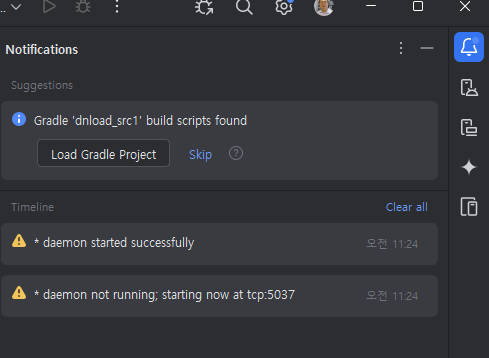
이러면 SDK의 화면 우상에 아래의 메시지를 확인할 수 있다.
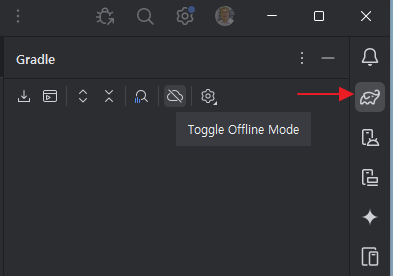
‘Load Gradle Project’를 클릭한다.
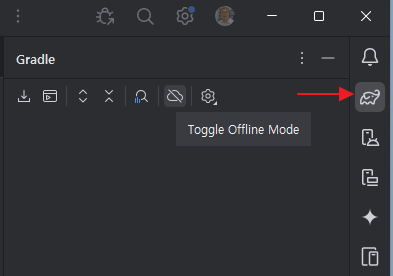
위와 같이 Gradle 메뉴가 생성된다.
Invalidate chches를 클릭해서 캐시를 지운다, ‘안드로이드 스튜디오’가 재 실행된다.