1. module을 사용하여 연결
from google.colab import drive
import cv2
from google.colab.patches import cv2_imshow

# 1. Google Drive 마운트
drive.mount('/content/drive')
윗 내용을 실행시키면 아랫 창이 나타난다.
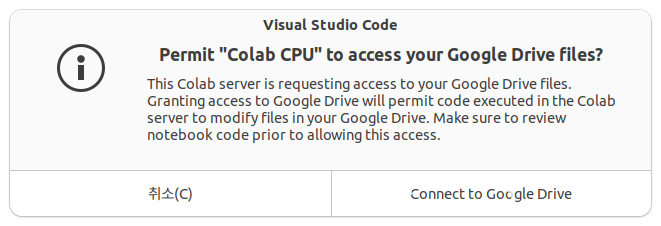
몇 번 화면을 따라가면서 클릭해주면 아랫 내용이 나타난다. 그럼 연결 끝.
Mounted at /content/drive2. rclone을 사용해서 연결
구글 계정으로 rclone을 이용, 구글 드라이브를 마운트 한 후 접속하는 것은 막혀있다. 이것을 해결하려면, 아래의 일련의 절차를 수행해야 한다.
- rclone 설치:
sudo apt install rclone - 설정 시작: 터미널에서
rclone config를 입력. - 새 리모트 생성:
n을 눌러 새 리모트를 만들고 이름을 정해(예:gdrive). - 스토리지 타입 선택: 목록에서 Google Drive에 해당하는 번호를 선택.
- 인증 진행: 안내에 따라 웹 브라우저를 통해 구글 계정 인증을 완료해.
- 마운트:
rclone mount gdrive: /path/to/mountpoint명령어로 로컬 디렉토리에 연결할 수 있어.
그런데 “5번 인증진행”에서 인증 오류가 발생할 것이다.
"승인 오류
 jalanwang@gmail.com The OAuth client was not found.
이 앱의 개발자인 경우 오류 세부정보를 참고하세요.
401 오류: invalid_client"
OAuth는 비번과 패스워드로 인증절차를 밟지 않는다는 의미이다. 그리고 OAuth client는 인증 서버가 클라이언트와 통신을 해서 인증을 하는데 OAuth client가 누군지 모르거나 없다는 내용이다.
아래에서 OAuth2.0 클라이인트를 먼저 만들자
2.1 OAuth 2.0 클라이언트 만들기
- 구글 클라우스 콘솔 접속
https://console.cloud.google.com
- 프로젝트 선택 도구 열기(Ctrl+O)
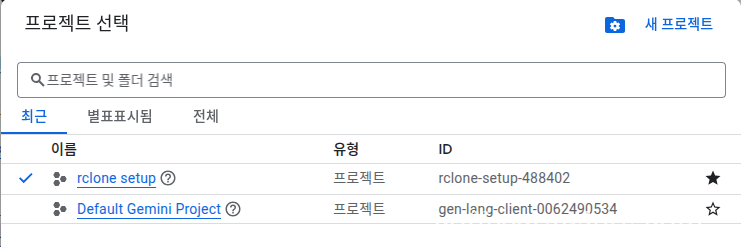
본인 꺼는 “rclone setup”이라고 있지만 새 프로젝트를 하나 더 만들어보겠다.
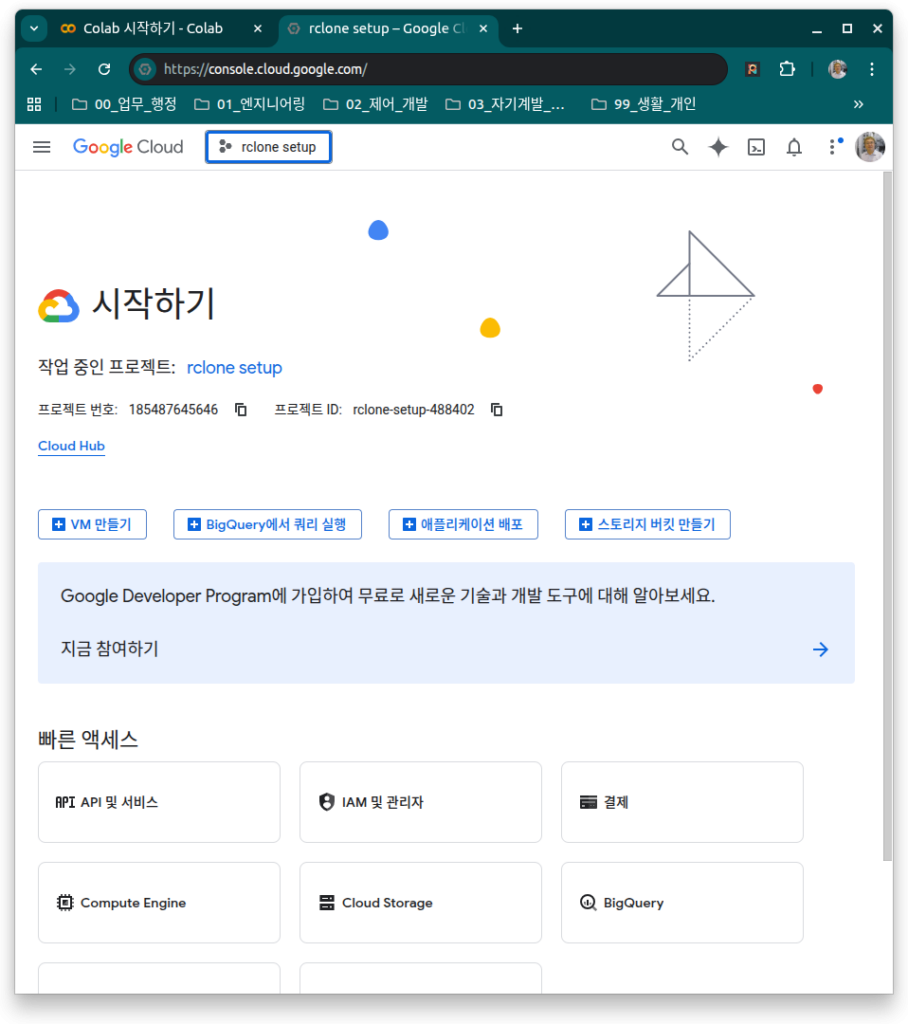
- 새 프로젝트 만들기
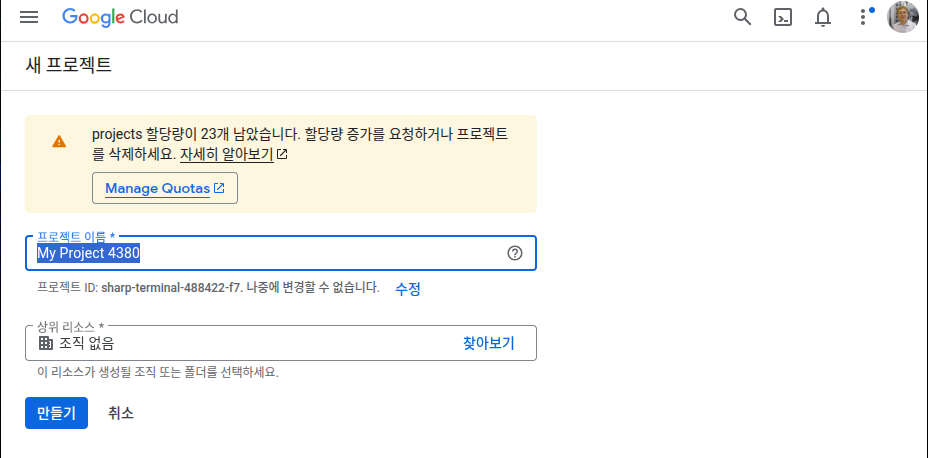
- 이름 설정
- 알림판 확인
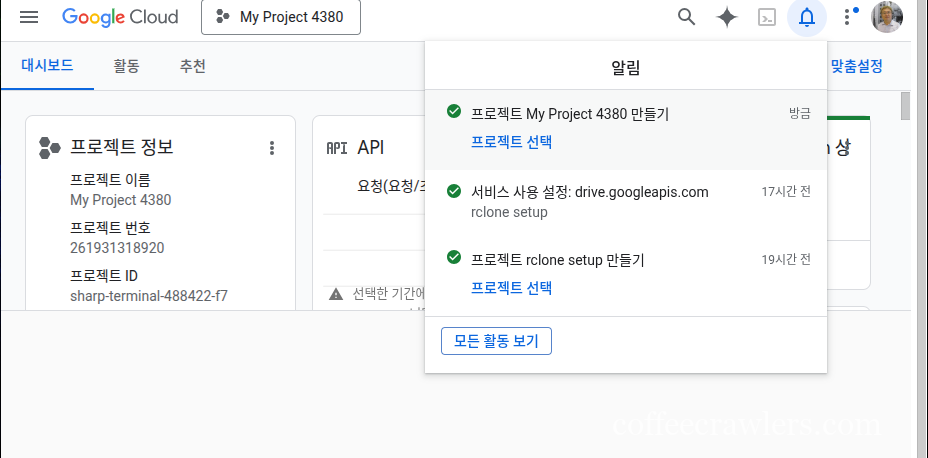
- 프로젝트 선택
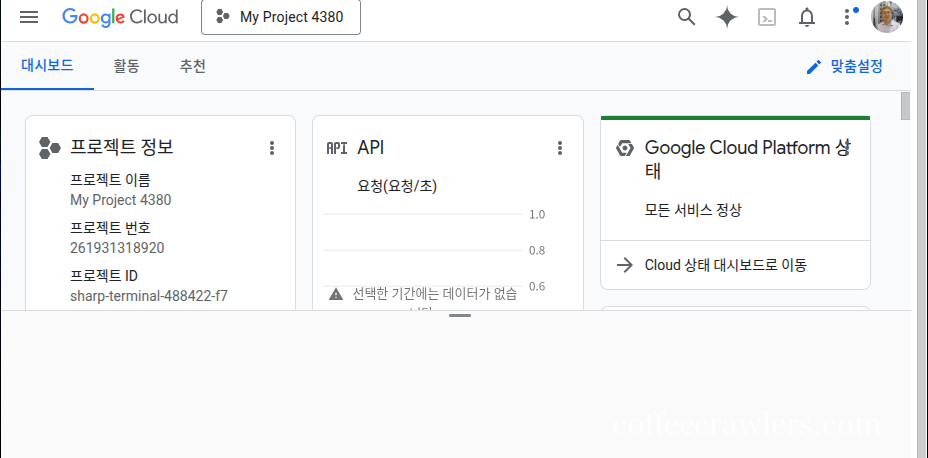
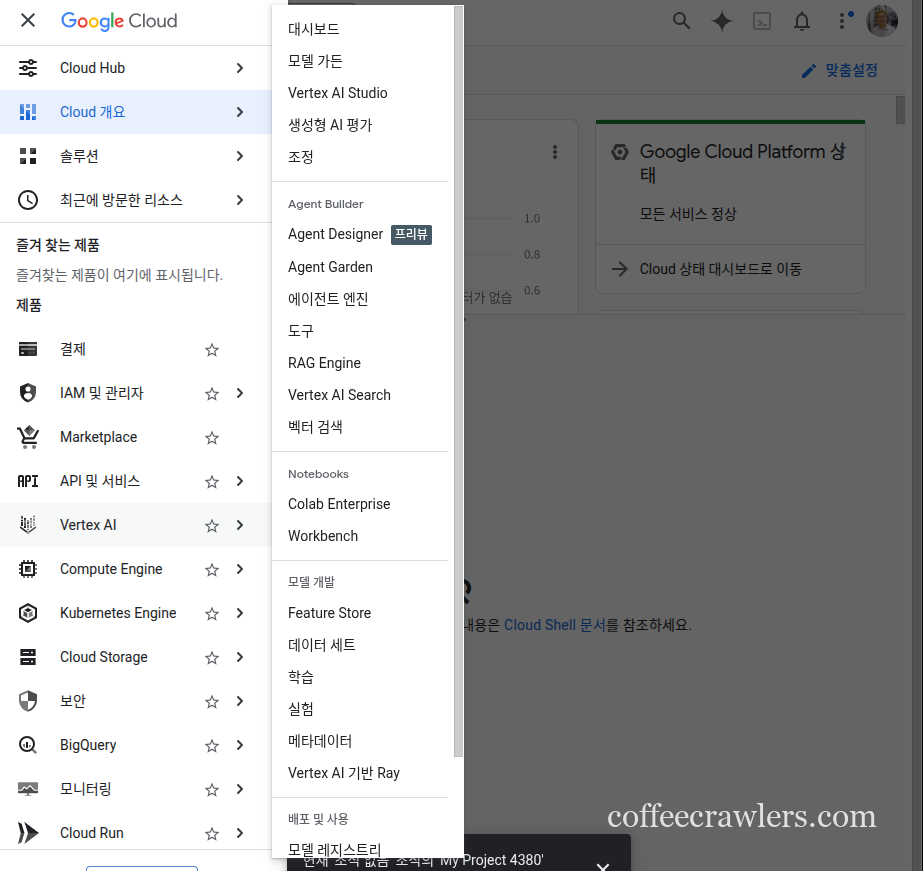
- 3디다스를 누른 후 API 및 서비스 클릭
- OAuth 동의 화면 클릭
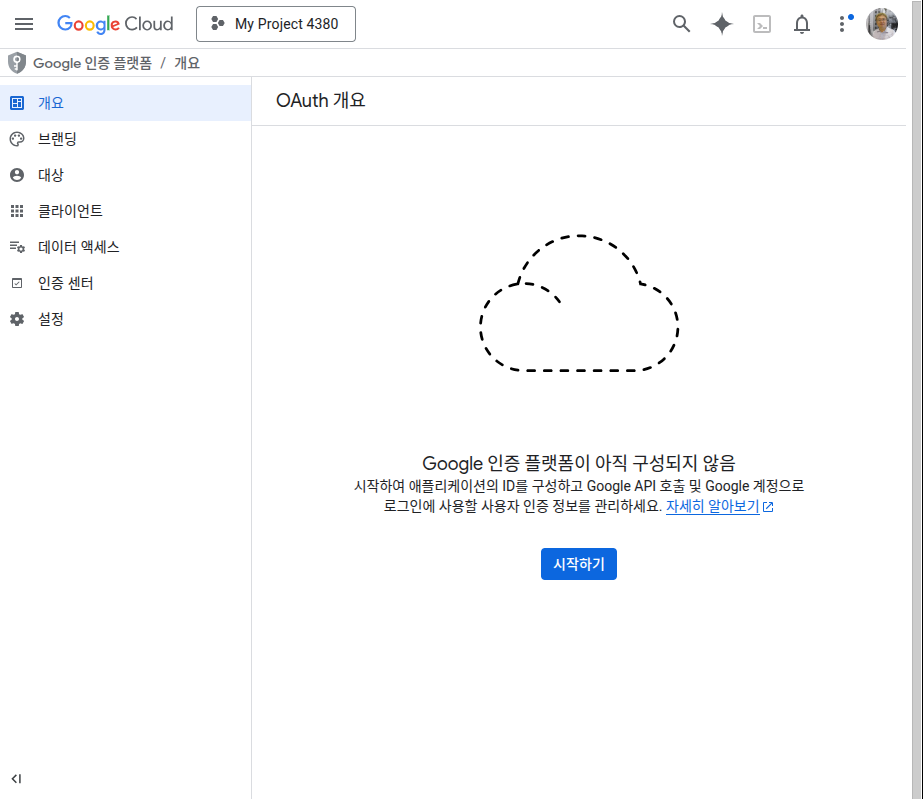
- 시작하기 버튼을 누른 후, 차례대로 진행한다.
- 중간에 대상은 “외부”로 설정하면 된다.
- “만들기” 버튼을 클릭한다.
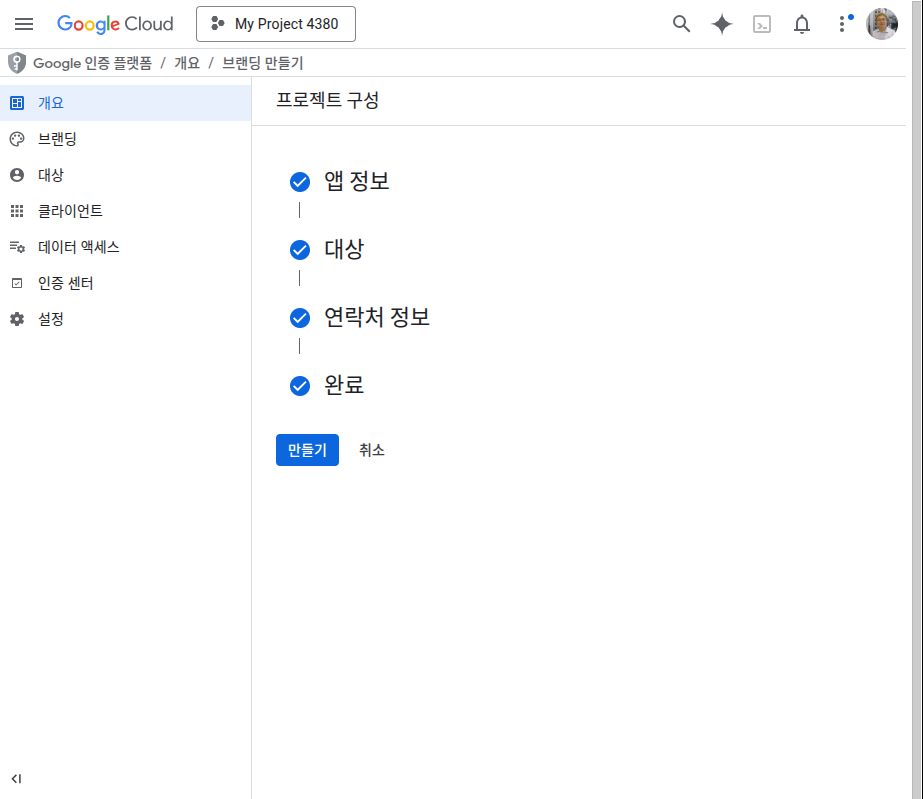
- “OAuth 클라이언트 만들기” 버튼 클릭
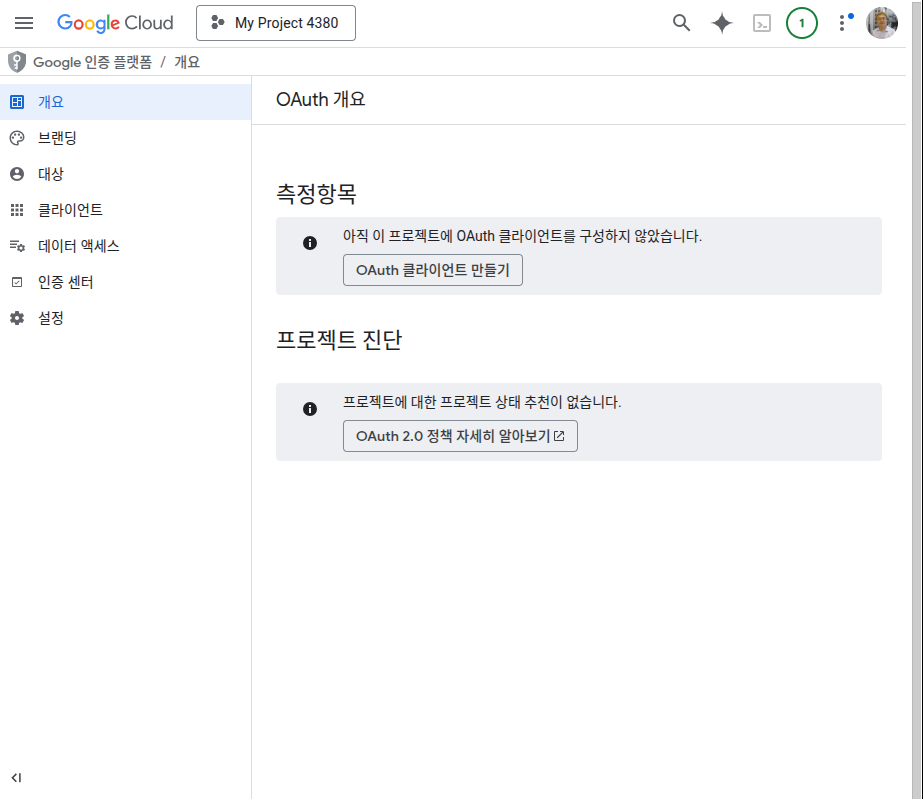
- OAuth 클라이언트 ID 만들기
- 데스크톱 앱 선택 후 이름을 설정한다.
- “만들기” 버튼 클릭
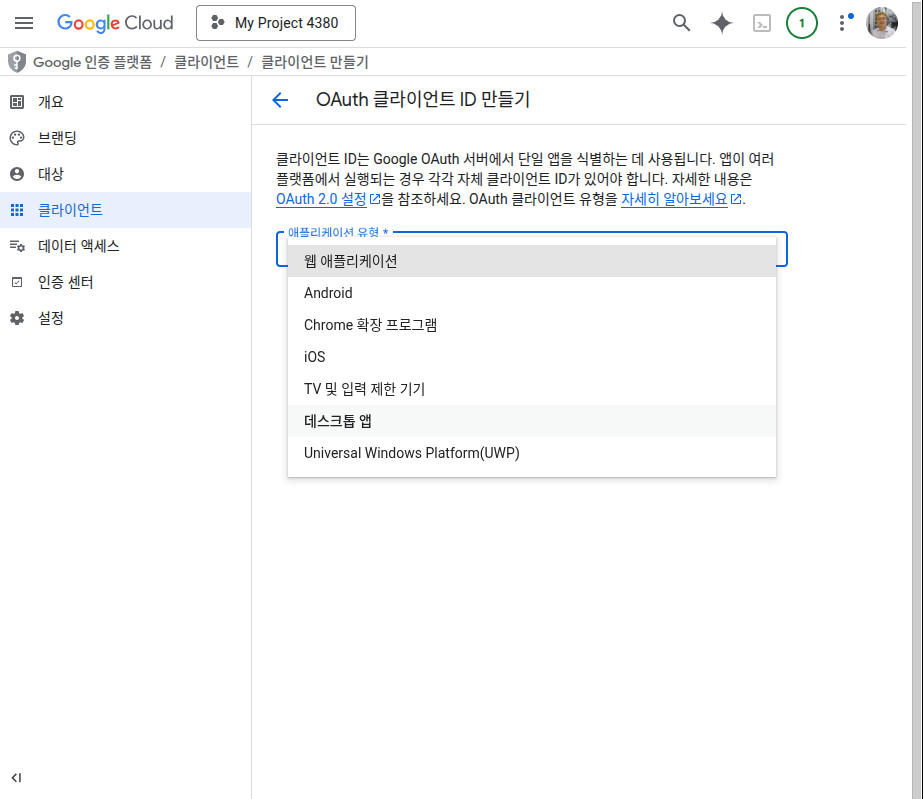
- “JSON 다운로드”버튼을 클릭해서 다운로드 해 놓는다.
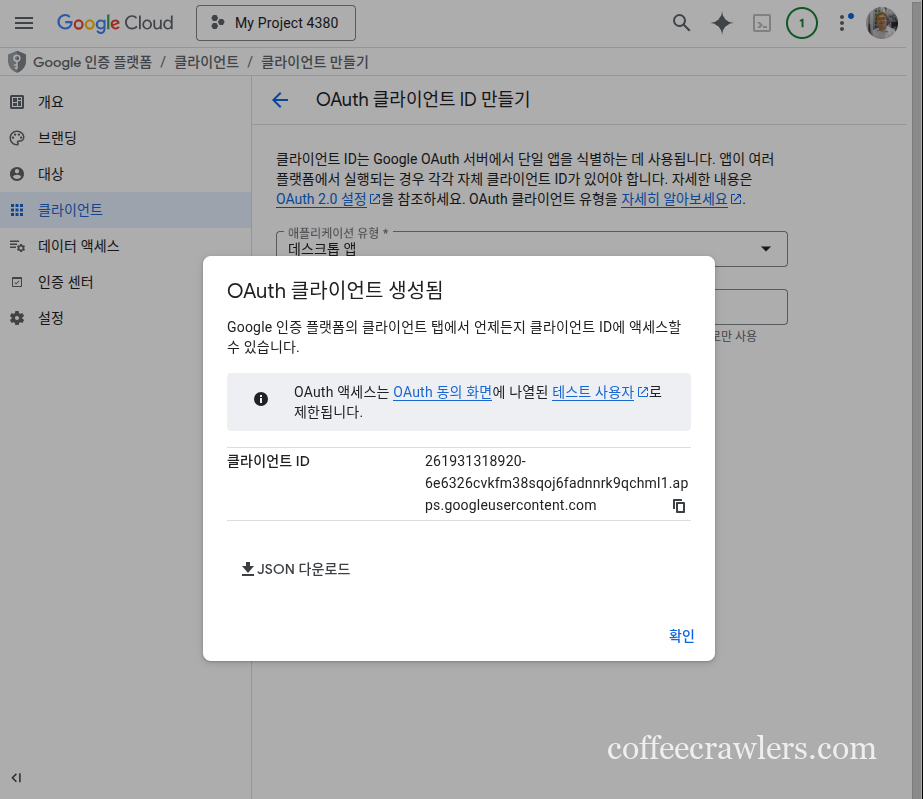
- 아랫 화면까지 보이면 거의 다 왔다.
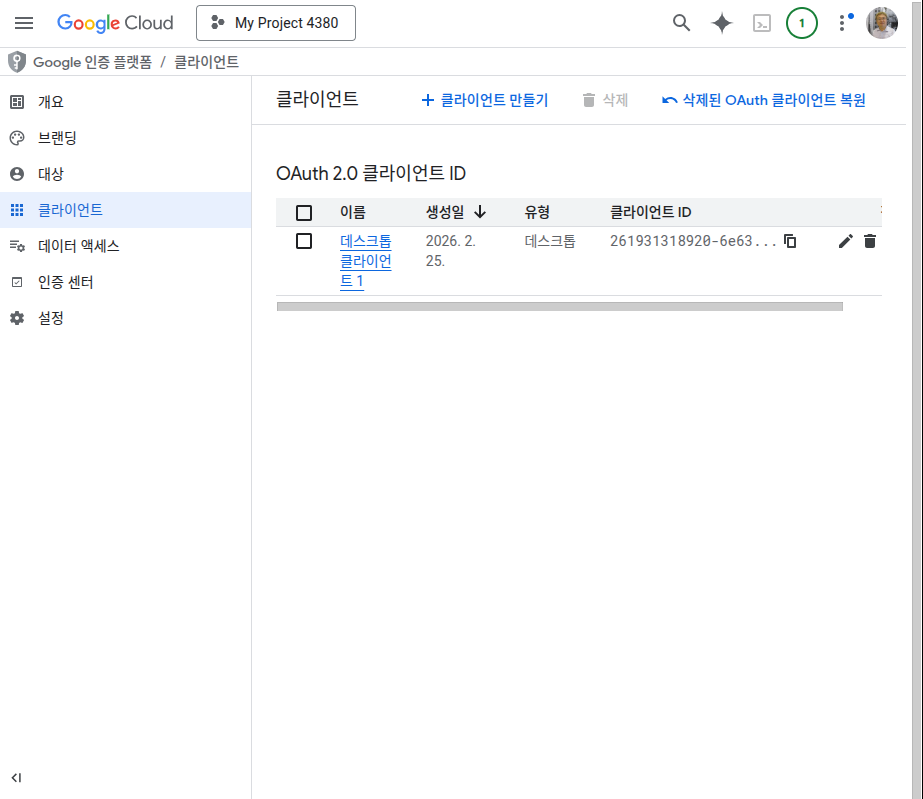
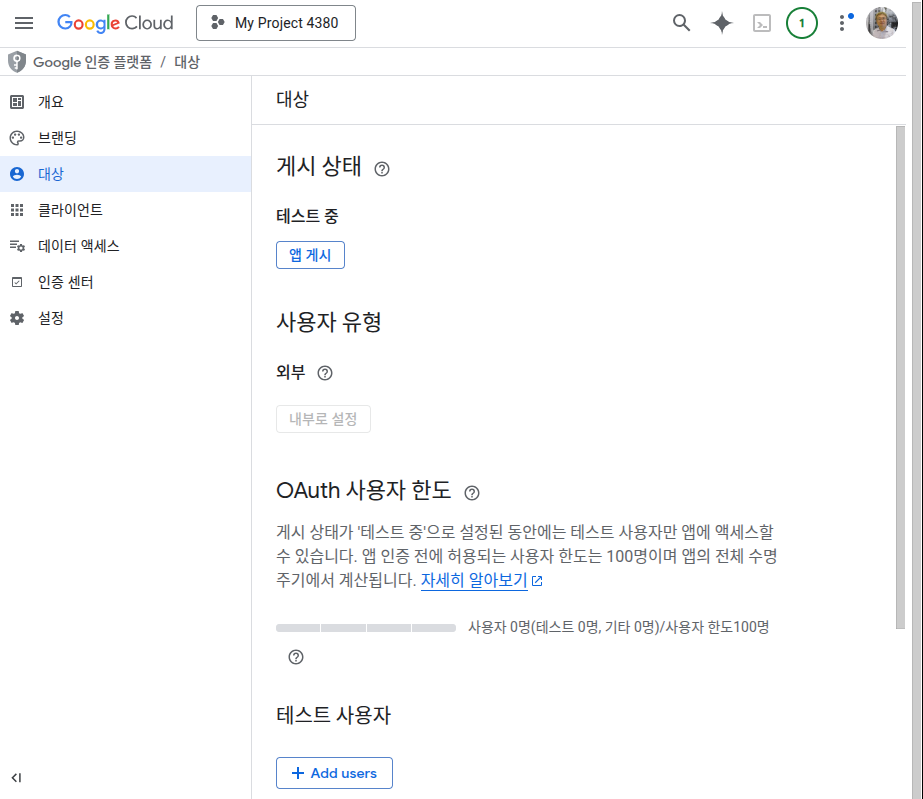
- 대상(이 클라이언트를 사용할 사람: 토큰(승차퀀)) 설정
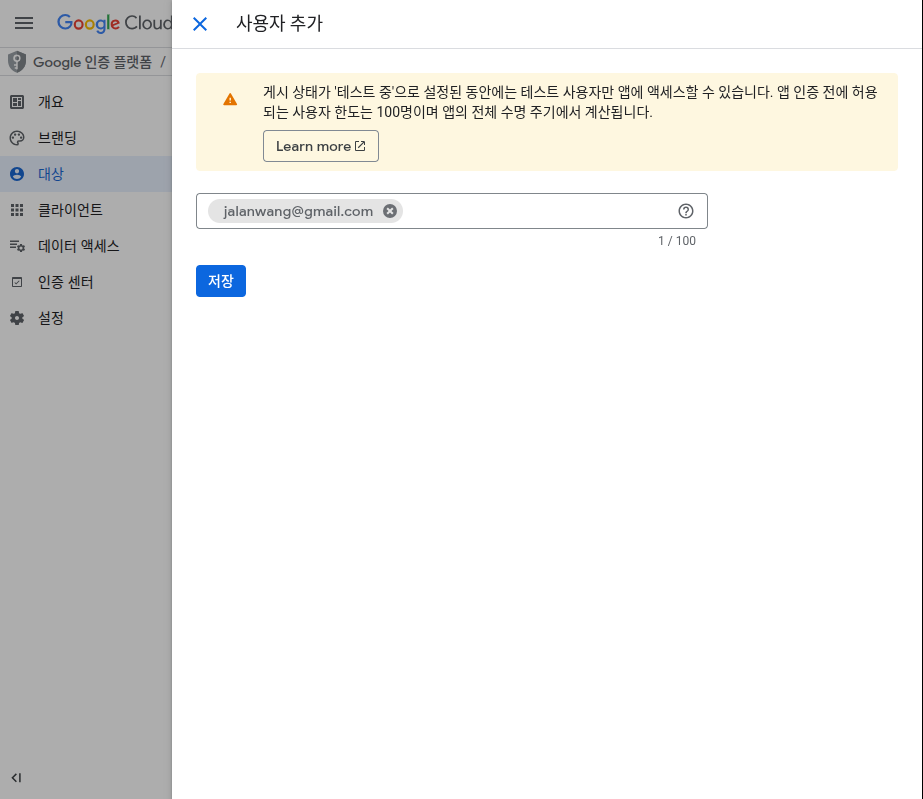
- 테스트 사용자 > Add users 버튼 클릭
- 사용자 email 주소 입력 후 저장
- 앱 게시
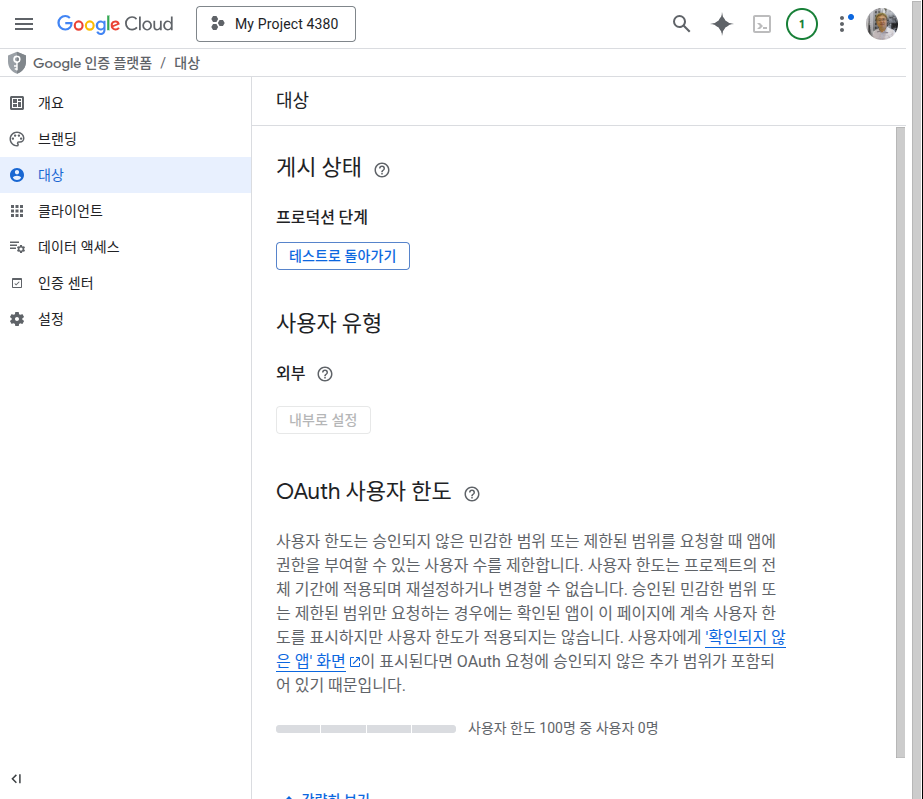
- 메뉴 > 클라이언트 > OAuth2.0 클라이언트 ID > 데스크톱 클라이언트1
- 우하단의 “클라이언트 보안 비밀번호”를 다운로드 해 놓는다.
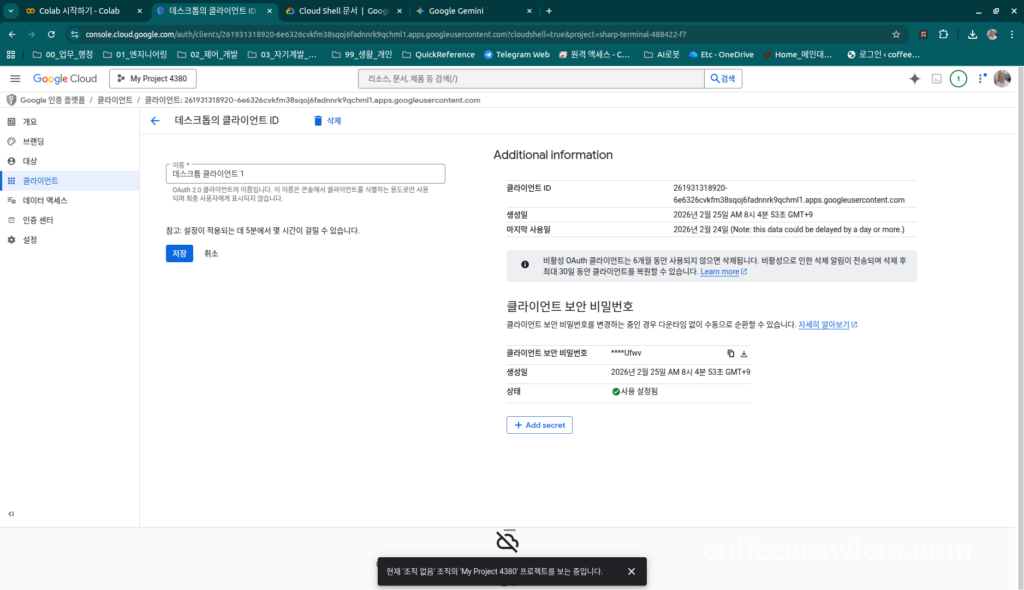
2.2 rclone config 설정
robot@robot:~$ rclone config
2026/02/24 14:34:27 NOTICE: Config file "/home/robot/.config/rclone/rclone.conf" not found - using defaults
No remotes found - make a new one
n) New remote
s) Set configuration password
q) Quit config
n/s/q> n
name> gdrive
Type of storage to configure.
Enter a string value. Press Enter for the default ("").
Choose a number from below, or type in your own value
1 / 1Fichier
\ "fichier"
2 / Alias for an existing remote
\ "alias"
3 / Amazon Drive
\ "amazon cloud drive"
4 / Amazon S3 Compliant Storage Provider (AWS, Alibaba, Ceph, Digital Ocean, Dreamhost, IBM COS, Minio, Tencent COS, etc)
\ "s3"
5 / Backblaze B2
\ "b2"
6 / Box
\ "box"
7 / Cache a remote
\ "cache"
8 / Citrix Sharefile
\ "sharefile"
9 / Dropbox
\ "dropbox"
10 / Encrypt/Decrypt a remote
\ "crypt"
11 / FTP Connection
\ "ftp"
12 / Google Cloud Storage (this is not Google Drive)
\ "google cloud storage"
13 / Google Drive
\ "drive"
14 / Google Photos
\ "google photos"
15 / Hubic
\ "hubic"
16 / In memory object storage system.
\ "memory"
17 / Jottacloud
\ "jottacloud"
18 / Koofr
\ "koofr"
19 / Local Disk
\ "local"
20 / Mail.ru Cloud
\ "mailru"
21 / Microsoft Azure Blob Storage
\ "azureblob"
22 / Microsoft OneDrive
\ "onedrive"
23 / OpenDrive
\ "opendrive"
24 / OpenStack Swift (Rackspace Cloud Files, Memset Memstore, OVH)
\ "swift"
25 / Pcloud
\ "pcloud"
26 / Put.io
\ "putio"
27 / SSH/SFTP Connection
\ "sftp"
28 / Sugarsync
\ "sugarsync"
29 / Transparently chunk/split large files
\ "chunker"
30 / Union merges the contents of several upstream fs
\ "union"
31 / Webdav
\ "webdav"
32 / Yandex Disk
\ "yandex"
33 / http Connection
\ "http"
34 / premiumize.me
\ "premiumizeme"
35 / seafile
\ "seafile"
Storage> 13
** See help for drive backend at: https://rclone.org/drive/ **

Google Application Client Id
Setting your own is recommended.
See https://rclone.org/drive/#making-your-own-client-id for how to create your own.
If you leave this blank, it will use an internal key which is low performance.
Enter a string value. Press Enter for the default ("").
client_id> 185487645646-rgn012344434324214321432mtbakjj.apps.googleusercontent.com
OAuth Client Secret
Leave blank normally.
Enter a string value. Press Enter for the default ("").
client_secret> GOCSPX-tj1fdsfdsafwf2fsafdsag6Pl7I
Scope that rclone should use when requesting access from drive.
Enter a string value. Press Enter for the default ("").
Choose a number from below, or type in your own value
1 / Full access all files, excluding Application Data Folder.
\ "drive"
2 / Read-only access to file metadata and file contents.
\ "drive.readonly"
/ Access to files created by rclone only.
3 | These are visible in the drive website.
| File authorization is revoked when the user deauthorizes the app.
\ "drive.file"
/ Allows read and write access to the Application Data folder.
4 | This is not visible in the drive website.
\ "drive.appfolder"
/ Allows read-only access to file metadata but
5 | does not allow any access to read or download file content.
\ "drive.metadata.readonly"
scope> 1
ID of the root folder
Leave blank normally.

Fill in to access "Computers" folders (see docs), or for rclone to use
a non root folder as its starting point.

Enter a string value. Press Enter for the default ("").
root_folder_id>
Service Account Credentials JSON file path
Leave blank normally.
Needed only if you want use SA instead of interactive login.

Leading ~ will be expanded in the file name as will environment variables such as ${RCLONE_CONFIG_DIR}.

Enter a string value. Press Enter for the default ("").
service_account_file>
Edit advanced config? (y/n)
y) Yes
n) No (default)
y/n>
Remote config
Use auto config?

Say Y if not sure

Say N if you are working on a remote or headless machine
y) Yes (default)
n) No
y/n>
If your browser doesn't open automatically go to the following link: http://127.0.0.1:53682/auth?state=hveNLN3d1s49kVvjxO6rpQ
Log in and authorize rclone for access
Waiting for code…
Got code
Configure this as a team drive?
y) Yes
n) No (default)

y/n>

[gdrive]
client_id = 12345678901020303032342.apps.googleusercontent.com
client_secret = fdsfdsafdsfdsfdssggsgsdgsg
scope = drive

token = {"fdsafdsfsdfdsfsafdsa"}

y) Yes this is OK (default)
e) Edit this remote
d) Delete this remote
y/e/d>
Current remotes:

Name Type
==== ====
gdrive drive

e) Edit existing remote
n) New remote
d) Delete remote
r) Rename remote
c) Copy remote
s) Set configuration password
q) Quit config
e/n/d/r/c/s/q> q- mount하기
rclone mount gdrive: ~/gdrive --vfs-cache-mode writes &2.3 mount 고정 해 놓기
- systemd로 올려 놓는다.
- /etc/systemd/system/rclone-gdrive.service 파일을 아랫처럼 만든 후 저장한다.
[Unit]
Description=Rclone Google Drive Mount
After=network-online.target

[Service]
Type=simple
User=robot
ExecStart=/usr/bin/rclone mount gdrive: /home/robot/gdrive --vfs-cache-mode writes
Restart=on-failure
RestartSec=10

[Install]
WantedBy=default.target- service를 system daemon에 등록해 놓는다.
sudo systemctl enable rclone-gdrive- 리부팅 후 되돌아 와서 아랫 내용을 확인해보자.
ls -F ~/gdirve

robot@robot:~$ ls -f ~/gdrive
'Colab Notebooks'
 Gemini
 Manual_QuickReference
'OpenCV Project Analysis V2.pptx'
 QuickSync
'SD20-VV를 포장해서 해외로 보내는데 수신 측에서 포장을 해제한 후 부속품을 장착하는....docx'
'Smart Parking Guidance System v1.1.pptx'
'Smart Parking Process.pptx'
 kakao_downloads
 plc공부
 robot
 shkim
 temp
 temp_1767046710303.-1637123384.cpp
 temp_1771812636116.1306755711.zip